WHAT'S NEW?
Loading...
Showing posts with label EXCEL. Show all posts
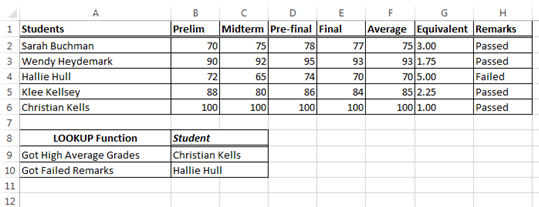
A list of students with their periodic exam (Prelim, Midterm, Pre – final, and Final) to calculate the average, equivalent, and remarks using excel. This problem it might be use various built-in function in excel such as AVERAGE, IF, and LOOKUP Function. Every Function has special meaning and capability to perform calculation. For instance, to identify whether the student’s Passed or Failed, we need to use IF Function. Now, find out what’s the best solution of this problem.

Given the following table. 
Excel Problem using various  built-in function
Grading System:

Grade                    Equivalent
100                        1.0
97-99                    1.25
94-96                    1.50
91-93                    1.75
88-90                    2.00
85-87                    2.25
82-84                    2.50
79-81                    2.75
75-78                    3.00
<75                        5.00

Requirements:

1.   Compute the Average grade of every student.
2.   Determine the student’s Equivalent grade given the Grading System above and Remarks whether Failed or Passed using IF Function.
3.   Determine the name of a student whose Average is equals to 100 using LOOKUP Function.
4.   Determine the name of a student got Failed Remarks using LOOKUP Function.

Final Output looks like the following
Excel Problem using various  built-in function output

The problem that I was encountered when someone asking about excel is how to lock specific cells in excel, because he want to know how to secure the confidentiality if somebody wants to modify the data in a worksheet particularly for specific rows and columns. Unfortunately, he’s question didn’t yet answer when he left because I have no idea answering his problem. I used search engine to find specific answer for the problem to help him, it’s sad to say that I am computer literate but I couldn’t find the solution for that simple problem.

I guess it’s a challenge for me. So, I wrote this article because finally I found it how very simple is. Hopefully this is very helpful for someone looking the same problem. Unfortunately, I used 2007 version, I think it’s similar in 2010 version of Excel.

To start – Open Microsoft Excel. Highlight the entire worksheet or Press Ctrl + A then Right click anywhere in the worksheet and click Format Cells


After that, dialog box appear. When you not using often, the default tab is Number, switch to Protection.


When you noticed we have 2 options, Locked and Hidden. Uncheck Locked so that we can apply only specific cells security. Then OK.


Now, it looks like the example above. However, is not the end to lock specific cell. Try to type any words in your worksheet let say “Hello” anywhere in column or rows. Ok, we are going to lock only Hello in a specific cell.


Again, right click on “Hello” word and select Format as what we did in previous. Noticed, in protection tab, all option now is uncheck. Check the option Lock.


Click OK. Make sure the mouse pointing in “Hello” word. In the ribbon area, the default is Home Tab. Toggle to Review Tab and select Protect Sheet.


Now type the password you want. Note: No need to check other options, just follow the default value given. Try to change the name “Hello”.


This dialog box display read – only because you don’t have permission to change it. In order to change the value, click Review Tab and click Unprotect Sheet.


Type your password. Now you may able to modify your record.

Now, you can create your records in excel and restrict those important cells you wish to add permission.

Here is the Video Tutorial


That’s all! Hope this is very helpful. 

In Visual Basic.Net, object, classes, and instances are very important terminology in implementation of an application in a real world of programming. An object is a code – based abstraction of a real – world entity or relationship. Class is an abstraction of real – world concepts, and it provides the basic form which you create instances of specific objects.


Each object belonging to a class is an instance of the class.
Example:

If you have 50 TV objects, you have 50 instances of the TV class. The action of creating an instance is called instantiate. From now on, we will say that you “create classes” but “instantiate objects”. The difference is used to reduce uncertainty.

Creating a class is done at design time when you’re building your software and involves writing the actual code. Instantiating an object is done at run time, when your program is being used.

Therefore, any program that makes used of this object will not have direct access to the behavior or data; rather, those programs must make use of your object’s interfaces.
Here are the list of programming exercises.

1. Write a program that will compute the sum of two integers and determine the highest number based on the input of a user.

2. Write a program that will compute for the sum, difference, average, and product based on the input of a user.

3. Make a program that prints the sum, difference, product, quotient, and remainder of two integers that are inputted interactively.

4. Write a program that computes for the area, circumference, and volume of a sphere if A, C, and V is pressed respectively. The user should enter first the radius of a sphere to solve for the unknowns.
     Formula:
         Area pie * radius2
         Volume = (4/3) * pie * radius2
         Circumference = 2*( pie * radius2)

5. Write a program that print A for grades greater than or equal to 90, B for the grades in the range of 80 to 89, C for the grades in the range of 70 to 79, D for the grades in the range of 60 to 69, and F for all other grades.

6. Write a program that will ask for a person name and gender. If the gender is equal to ‘m’ or ‘M’ then display “You are a male”. If the gender is equal to ‘f’ or ‘F’ then display “You are a female”. And if the user input aside from ‘m’, ’M’,’f’, and ’F’, error will display.

7. Write a program that will computes the volume of a cylinder.
     Formula:
         Volume pie * radius2 * h

8. Write a program that will computes the perimeter and area of a rectangle.
     Formula:
         Perimeter = 2 * (length + width)
         Area = length * width

9. Create a program that will input the location, destination, distance in kilometers and average time travelled. Compute for the speed, where ‘S’ denotes speed, ‘D’ for the distance and ‘T’ for the time. Make sure to include the concatenation space between strings.
     Formula:
        S = D/T

10.Write a program that computes the prelim quizzes, activity, class participation, and PRELIM exam. Do the same procedure for MIDTERM, PRE-FINAL, and FINAL. The program must be flexible in any users. The users can input their appropriate percentage like quizzes, activity, and class participation with the total of 50% and half of 50% is the periodic exam in every period such as prelim, midterm, pre-final, and final, and the total of 100%.

  The output includes name, course, prelim, midterm, pre-final, and final. The program can determine passed or failed in the total grade.

Formula:
  PRELIM = ((((sum of quizzes/total quizzes) * 40 + 60) * given percentage) + (((sum of activity/total activity)* 40 + 60) * given percentage) + ((class participation) * given percentage) + (((exam/total exam) * 40 + 60) * 50%))

  MIDTERM = ((1/3 * (PRELIM)) + (2/3) * ((((sum of quizzes/total) * 40 + 60) * given percentage) + (((sum of activity/total activity)* 40 + 60) * given percentage) + ((class participation) * given percentage) + (((exam/total exam) * 40 + 60) * 50%))))

  PRE-FINAL = ((1/3 * (MIDTERM)) + (2/3) * ((((sum of quizzes/total) * 40 + 60) * given percentage) + (((sum of activity/total activity)* 40 + 60) * given percentage) + ((class participation) * given percentage) + (((exam/total exam) * 40 + 60) * 50%))))

  FINAL = ((1/3 * (PRE-FINAL)) + (2/3) * ((((sum of quizzes/total) * 40 + 60) * given percentage) + (((sum of activity/total activity)* 40 + 60) * given percentage) + ((class participation) * given percentage) + (((exam/total exam) * 40 + 60) * 50%))))
  Note: The total average takes in every period like quizzes, activity, and class participation does not more than 50 percent. If the problems arise, it depends how you are going to handle.

Random questionnaires probably the useful tools for creating an exam because every student given questions randomly based on what computer generated. With that, it’s maximized cheating each other. There are different ways how to integrate random questions, actually human can create manual random questions but it is very difficult to handle that tasks. However, computer is the answer in that problem because we know computer is one of our best friend incomes in technology that help our work faster.

In this sample program, it shows how to pick random questions based on what you declared using Visual Basic.Net (VB.Net). Yet, the example here is simple but you can increase your idea how to work in your own. To implement random questions and make it flexible and secure your data, you can use database where you can add and store a data, at the same time you can query a certain data. Well, this is my sample code.

Option Strict On
Option Explicit On

Public Class Form1
Private Sub btngenerate_Click(ByVal sender As System.Object, ByVal e As System.EventArgs) Handles btngenerate.Click
        Dim questionexists As New Collection
        Dim validquestion As Boolean = False
        txtquestionnaires.Text = RandomQuestion(CStr(randonNumber(0, 8)))
        questionexists.Add(txtquestionnaires.Text, txtquestionnaires.Text)
        While validquestion = False
            Dim strquestion2 As String = RandomQuestion(CStr(randonNumber(0, 8)))
            If questionexists.Contains(strquestion2) Then
                validquestion = False
            Else
                validquestion = True
                txtquestionnaires.Text = strquestion2
            End If
        End While
    End Sub

    Private Function GenerateRandomkey(ByVal LowerBand As Integer, ByVal UpperBound As Integer) As Integer
        Randomize()
        Dim r As New Random
        Return r.Next(LowerBand, UpperBound)
    End Function

    Public Function randonNumber(ByVal ilower As Integer, ByVal iUpper As Integer) As Integer
        Return GenerateRandomkey(ilower, iUpper)
    End Function
    Private Function RandomQuestion(ByVal iRandom As String) As String
        Select Case iRandom
            Case CStr(0)
                Return "What is VB stands for?"
            Case CStr(1)
                Return "What is Java"
            Case CStr(2)
                Return "What is PHP?"
            Case CStr(3)
                Return "What is ASP?"
            Case CStr(4)
                Return "What is programmer?"
            Case CStr(5)
                Return "What is syntax?"
            Case CStr(6)
                Return "What is your favorite programming language?"
            Case CStr(7)
                Return "What is Python?"
            Case CStr(8)
                Return "What is computer?"
        End Select
        Return "Who is your name?"
    End Function
End Class

Noted: There are different ways how to work with random questions.


Here are the steps:
1.   In Sheet 1 column A3, B3, C3, and D3 type the following column name: Name of students, Subject, Grade, and Remarks.
2.   Use Relative Reference to start record the name of students. Change the name macro to Listofmystudents.
3.   Here are the list of names to record under the Name of students:

Joseph Zurg
Mark Trulz
Lawrence Falk
Matt Trickle
Nicole French
Cris Bruz
Angelic Cane
Yangez Markgauze
Nortdelle Howard
Manyalk Kyade


4.   Then click to Stop Recording.
5.   Now, you can run your relative macros somewhere in your sheets anywhere the cells is active.
6.   Under Subject column. Use Relative Reference to start record the student subject and name it Studentsubjects. Then type the following Subject.

Math
English
Programming
Science
English
Math
Programming
English
Science
Math

7.   Then click to Stop Recording.
8.   Now, you can run your relative macros somewhere in your sheets anywhere the cells is active.
9.   Under the Grade column. Again, use Relative Reference to start record the student grade and name it Studentgrade. Then type the following Grade.

90
74
85
71
96
80
91
70
89
72

10.   Then click to Stop Recording.
11.   Now, you can run your relative macros somewhere in your sheets anywhere the cells is active.

To create a Remarks, we want to record again using if statement. The purposed is, if you want to determine either the student’s Passed or Failed just simply run the macros, automatically the macros filled the remarks.

1.   Under Remarks column. Again, use Relative Reference to start record the student remarks and name it Studentsremarks. Then type the following formula.
2.   =IF(C4<75,"Failed","Passed") in D4 under Remarks column
3.   Then click to Stop Recording.
4.   Now, you can run your relative macros somewhere in your sheets anywhere the cells is active.

You can create your own layout separated on your actual work using macros and run it if needed.
HOW?
1.   In Sheet 2, run your macros name: Listofmystudents in C5, Studentsubjects in D5, Studentgrade in E5, and Studentsremarks in F5. Expand the width of each column that fit to your data.
2.   Now, we want to record our layout. Again, use relative reference to start record and name it Fillmyownlayout.
3.   Layout your own design, then click to Stop Recording if already done.
4.   Now, you can select the name of your Relative Macros to run somewhere in your Sheets anywhere the cells is active.

An Excel Macro is a set of instructions that can be triggered by a keyboard shortcut, toolbar button or an icon in a spreadsheet. Macros are used to eliminate the need to repeat the steps of common tasks over and over.
Tasks such as adding or removing rows
 and columns, protecting or unprotecting worksheets, selecting a range of cells, or adding the current date to a spreadsheet. In Excel, macros are written in Visual Basic for Applications (VBA).

Recording MacrosWhen you record a macro, Excel stores information about each step you take as you perform a series of commands. You then run the macro to repeat, or "play back," the commands.

Here are the basic steps on how to create macros

1. In excel default tab noticed that there’s no Developer Tab appear in ribbon, in order to do that.
2. In Office Button, click office button and just below click Excel Options.
3. In an Excel Options, click on the Popular. If you notice we have 3 top options for working with windows.
4. Check the box show developer tab in the ribbon.
5. Now you have already a developer tab in your ribbon.


Let us recall what is Relative and Absolute Reference:

Relative Cell References that will change in relation to the new location of the formula. Relative references identify cells based on their relationship to the cell containing the reference.

Absolute Cell References that remain the same when a formula is copied to a new location. No matter where the formula or the values in the original cell are moved, the formula will continue to refer to the same cell.


These tutorials show on how to create simple Marcos with absolute and relative references.

Absolute Reference:

1.   Create column name, First name in A1 and Last name in B1.
2.   Now, we want to record our macros. In your tab ribbon, click the developer tab.
3.   Before we start typing the name. First, click Record Macros.
4.   When you noticed, another dialog windows appear. Name you macros as MacAbsoluteRecord. If you want for short cut key, it’s your choice. Then click OK.
5.   It’s time to add the data in your first name and last name. So, we have 3 input rows.
6.   Now, Stop Recording.
7.   To run macros. Click on sheet 2, Create column name, First name in A1 and Last name B1.
8.   In your developer tab, click macros and locate the name of your macros you’ve already created “MacAbsoluteRecord”.
9.   Click run.
10. If you want to run your macros anywhere in your sheets, the same column and rows that the record you’ve created will display, because absolute reference does not change whenever the formulas created in your worksheets.
11. You may able to run you macros as shortcut command based on your short cut key. Just like Ctrl + m.

Relative Reference:

1.   Before we start typing our data, we want to records first as relative reference. In order to do that, in your developer tab under Record Macros, click Use Relative References.
2.   When you notice, Use Relative Reference is now active and then click Record Macros. Name it, "MacRelativeRecord".
3.   Now, it time to record. In your column name, type Name and Gender. So we have 3 input rows in Name and Gender
4.   Then stop Recording.
5.   In your developer tab, click macros and locate the name of your macros you’ve already created “MacRelativeRecord”.
6.   Click anywhere in your sheets to run macros and select the name of your macros.
7.   Noticed when you run the relative reference, the first destination of your macros record is based on the intersection of column and row where the cell is active, because relative references change whenever the cell is active.


Here are the examples Screenshot
Absolute References:

            Relative Reference