WHAT'S NEW?
Loading...
Showing posts with label MySQL. Show all posts
Migrate your Microsoft Access Database to MySQL Database?

Visual Basic.Net provides variety of Data Provider to work with ADO.NET depends on the needs of the projects. For instance, to store a large amount of data to your database, it’s prefer to used MySQL, Oracle, and MSSQL because MS Access Database only provides limited features compare other Databases. Fortunately, All Data Providers works on the same way because if you know how to use OLEDB Provider also you can easily work with others.

For example.

OLEDB Class
Dim da As OleDbDataAdapter
Dim cmd As New OleDbCommand
Dim conn As New OleDbConnection

MySQL Class
Dim da As MySqlDataAdapter
Dim cmd As New MySqlCommand
Dim conn As New MySqlConnection

To use MySQL Class name. Right click anywhere in your Toolbox and Choose Items

Add New .Net Components

It will displays dialog window, the default tab is .Net Framework Components. Locate MySqlCommand, MySqlConnection, and MySqlDataAdapter.
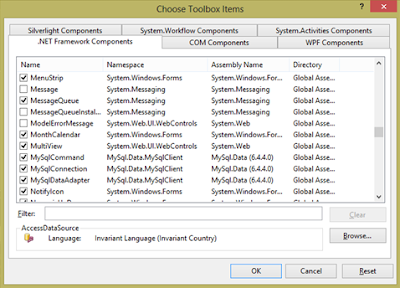

Choose Toobox Items Components
Then, click OK.


Now, just above Public Class Form1 import class name Imports MySql.Data.MySqlClient.

To setup the connection string.

connString = "server=localhost;user id=root;password=123;database=dbinfo"

connString a variable name that holds your data provider connection, in server provider you can set localhost as number 127.0.0.1 because were both identical. If you don’t have password, let empty and lastly, your database name.


Your code looks like the following.

Imports MySql.Data.MySqlClient
Public Class Form1
    Dim connString As String
    Dim da As MySqlDataAdapter
    Dim ds As New DataSet
    Dim cmd As New MySqlCommand
    Dim sql As String
    Dim conn As New MySqlConnection

    Private Sub Form1_Load(ByVal sender As System.ObjectByVal e As System.EventArgsHandles MyBase.Load
    End Sub

    Public Sub myConnection()
        connString = "server=localhost;user id=root;password=123;database=dbinfo"
        conn.ConnectionString = connString
        conn.Open()
    End Sub

    Private Sub btnConnect_Click(ByVal sender As System.ObjectByVal e As System.EventArgsHandles btnConnect.Click
        Call myConnection()
        MessageBox.Show("Opened")
        conn.Close()
    End Sub

    Public Sub retrieveData()
        Call myConnection()
        sql = "SELECT * FROM tblInfo"
        da = New MySqlDataAdapter(sql, conn)

        da.Fill(ds, "dbinfo")
        DataGridView1.DataSource = ds.Tables("dbinfo")
        conn.Close()
    End Sub

    Private Sub btnFill_Click(ByVal sender As System.ObjectByVal e As System.EventArgsHandles btnFill.Click
        Call retrieveData()
    End Sub

End Class

The Windows Form Looks like the following.
MySQL and VB.NET Windows Form


In Visual Basic.Net, object, classes, and instances are very important terminology in implementation of an application in a real world of programming. An object is a code – based abstraction of a real – world entity or relationship. Class is an abstraction of real – world concepts, and it provides the basic form which you create instances of specific objects.


Each object belonging to a class is an instance of the class.
Example:

If you have 50 TV objects, you have 50 instances of the TV class. The action of creating an instance is called instantiate. From now on, we will say that you “create classes” but “instantiate objects”. The difference is used to reduce uncertainty.

Creating a class is done at design time when you’re building your software and involves writing the actual code. Instantiating an object is done at run time, when your program is being used.

Therefore, any program that makes used of this object will not have direct access to the behavior or data; rather, those programs must make use of your object’s interfaces.
Here are the list of programming exercises.

1. Write a program that will compute the sum of two integers and determine the highest number based on the input of a user.

2. Write a program that will compute for the sum, difference, average, and product based on the input of a user.

3. Make a program that prints the sum, difference, product, quotient, and remainder of two integers that are inputted interactively.

4. Write a program that computes for the area, circumference, and volume of a sphere if A, C, and V is pressed respectively. The user should enter first the radius of a sphere to solve for the unknowns.
     Formula:
         Area pie * radius2
         Volume = (4/3) * pie * radius2
         Circumference = 2*( pie * radius2)

5. Write a program that print A for grades greater than or equal to 90, B for the grades in the range of 80 to 89, C for the grades in the range of 70 to 79, D for the grades in the range of 60 to 69, and F for all other grades.

6. Write a program that will ask for a person name and gender. If the gender is equal to ‘m’ or ‘M’ then display “You are a male”. If the gender is equal to ‘f’ or ‘F’ then display “You are a female”. And if the user input aside from ‘m’, ’M’,’f’, and ’F’, error will display.

7. Write a program that will computes the volume of a cylinder.
     Formula:
         Volume pie * radius2 * h

8. Write a program that will computes the perimeter and area of a rectangle.
     Formula:
         Perimeter = 2 * (length + width)
         Area = length * width

9. Create a program that will input the location, destination, distance in kilometers and average time travelled. Compute for the speed, where ‘S’ denotes speed, ‘D’ for the distance and ‘T’ for the time. Make sure to include the concatenation space between strings.
     Formula:
        S = D/T

10.Write a program that computes the prelim quizzes, activity, class participation, and PRELIM exam. Do the same procedure for MIDTERM, PRE-FINAL, and FINAL. The program must be flexible in any users. The users can input their appropriate percentage like quizzes, activity, and class participation with the total of 50% and half of 50% is the periodic exam in every period such as prelim, midterm, pre-final, and final, and the total of 100%.

  The output includes name, course, prelim, midterm, pre-final, and final. The program can determine passed or failed in the total grade.

Formula:
  PRELIM = ((((sum of quizzes/total quizzes) * 40 + 60) * given percentage) + (((sum of activity/total activity)* 40 + 60) * given percentage) + ((class participation) * given percentage) + (((exam/total exam) * 40 + 60) * 50%))

  MIDTERM = ((1/3 * (PRELIM)) + (2/3) * ((((sum of quizzes/total) * 40 + 60) * given percentage) + (((sum of activity/total activity)* 40 + 60) * given percentage) + ((class participation) * given percentage) + (((exam/total exam) * 40 + 60) * 50%))))

  PRE-FINAL = ((1/3 * (MIDTERM)) + (2/3) * ((((sum of quizzes/total) * 40 + 60) * given percentage) + (((sum of activity/total activity)* 40 + 60) * given percentage) + ((class participation) * given percentage) + (((exam/total exam) * 40 + 60) * 50%))))

  FINAL = ((1/3 * (PRE-FINAL)) + (2/3) * ((((sum of quizzes/total) * 40 + 60) * given percentage) + (((sum of activity/total activity)* 40 + 60) * given percentage) + ((class participation) * given percentage) + (((exam/total exam) * 40 + 60) * 50%))))
  Note: The total average takes in every period like quizzes, activity, and class participation does not more than 50 percent. If the problems arise, it depends how you are going to handle.

I’m trying to get interesting with MySQL to connect my Visual Basic.Net. First, you will need to download the MySQL Connector/Net from http://dev.mysql.com/downloads/connector/net/ and http://dev.mysql.com/downloads/workbench/5.2.html   for the MySQL GUI Tools Bundle (Administrator, Query Browser, and Migration Toolkit). Once the connector is installed, now begin a new project in VB.Net. Choose "Add Reference" from the Project menu, then select "Browse" and browse to the installation folder where the connector was installed, choose "MySQL.Data.dll". Now imports the Connector/NET to use its Namespace shown below.
Imports MySql.Data.MySqlClient
Public Class Form1
It includes how connect MySQL to VB.NET and it enable to SELECT, UPDATE, DELETE, and UPDATE records. Then, it can perform following tasks such as ADD, DELETE, UPDATE, SAVE, and SEARCH records that populate using ListView.

In other tutorials, they use DataGridView because that’s the easy way how to load data from database. 
First, I’ve already created a module. To do that, from the project menu, select Add Module. Here is the code.
Imports MySql.Data.MySqlClient
Module MyModule
    Public ConnString As String = "server=localhost;user id=root;password=;database=dbinformation"
    Public MyConnection As New MySqlConnection(ConnString)
End Module
The above code is MySQL connection. Actually, you can create a connection without the help of module. The technique here is, create a method name for connection and simply call the connection if needed. Once the method name is created, simply put myconnection() in every form load to enable to connect from your database.
Note: there are different styles of coding to connect from database, it’s up to the programmer.
   Public Sub myconnection()
        Dim sqlserver As String = "Server=127.0.0.1;User ID=root;Password=;Database=DbTest" 'or you may used localhost instead 127.0.0.1
        Dim sqlcon As New MySqlConnection
        sqlcon.ConnectionString = sqlserver
        Try
            If sqlcon.State = ConnectionState.Closed Then
                sqlcon.Open()
                MessageBox.Show("Open")
            Else
                sqlcon.Close()
                MessageBox.Show("closed")
            End If
        Catch ex As Exception
            MessageBox.Show(ex.Message)
        End Try
    End Sub


Under construction yet! continue


Form 1
Imports MySql.Data.MySqlClient
Public Class Form1
    Public ds As New DataSet
    Public strSQL As String
    Public cmd As New MySqlCommand
    Public dr As MySqlDataReader
    Public table As New DataTable
    Private Sub Form1_Load(ByVal sender As System.Object, ByVal e As System.EventArgs) Handles MyBase.Load
        'list()
        mylistview()
    End Sub
    Private Sub btnsave_Click(ByVal sender As System.Object, ByVal e As System.EventArgs) Handles btnsave.Click
        strSQL = "Insert into tblinformation(Firstname,Lastname,Middlename,Gender) values ('" & txtfname.Text &
            "', '" & txtlname.Text & "', '" & txtmname.Text & "', '" & cbogender.Text & "')"
        Dim da As New MySqlDataAdapter(strSQL, MyConnection)
        da.Fill(ds)
        txtfname.Clear()
        txtlname.Clear()
        txtmname.Clear()
        cbogender.Text = ""
        txtfname.Focus()
        list()
    End Sub
    Private Sub btndelete_Click(ByVal sender As System.Object, ByVal e As System.EventArgs) Handles btndelete.Click
        If lvinfo.Items.Count > 0 Then
            For i = lvinfo.Items.Count - 1 To 0 Step -1
                If lvinfo.Items(i).Checked = True Then
                    strSQL = "DELETE FROM tblinformation WHERE ID = '" & lvinfo.Items(i).Text & "'"
                    Dim da As New MySqlDataAdapter(strSQL, MyConnection)
                    da.Fill(ds)
                End If
            Next i
        End If
        list()
    End Sub
    Private Sub TextBox3_TextChanged(ByVal sender As System.Object, ByVal e As System.EventArgs) Handles txtsearch.TextChanged
        strSQL = "SELECT * FROM tblinformation WHERE Firstname LIKE '%" & txtsearch.Text & "%' OR Lastname LIKE '%" & txtsearch.Text & "%'"
        MyConnection.Open()
        cmd = New MySqlCommand(strSQL, MyConnection)
        dr = cmd.ExecuteReader()
        lvinfo.Items.Clear()
        Do While dr.Read()
            Dim a = (dr.Item("ID").ToString())
            Dim b = (dr.Item("Firstname").ToString())
            Dim c = (dr.Item("Lastname").ToString())
            Dim d = (dr.Item("Middlename").ToString())
            Dim f = (dr.Item("Gender").ToString())
            Dim lv As ListViewItem = lvinfo.Items.Add(a)
            lv.SubItems.Add(b)
            lv.SubItems.Add(c)
            lv.SubItems.Add(d)
        Loop
        dr.Close()
        MyConnection.Close()
        MyConnection.Dispose()
    End Sub
    Private Sub ListView1_DoubleClick(ByVal sender As System.Object, ByVal e As System.EventArgs) Handles lvinfo.DoubleClick
        If lvinfo.Items.Count > 0 Then
            Form2.lblid.Text = lvinfo.SelectedItems(0).Text
            Form2.txtfname.Text = lvinfo.SelectedItems(0).SubItems(1).Text
            Form2.txtlname.Text = lvinfo.SelectedItems(0).SubItems(2).Text
            Form2.txtmname.Text = lvinfo.SelectedItems(0).SubItems(3).Text
            Form2.cbogender.Text = lvinfo.SelectedItems(0).SubItems(4).Text
        End If
        Form2.Show()
    End Sub
    Public Sub list()
        strSQL = "SELECT * FROM tblinformation"
        MyConnection.Open()
        cmd = New MySqlCommand(strSQL, MyConnection)
        dr = cmd.ExecuteReader()
        lvinfo.Items.Clear()
        Do While dr.Read()
            Dim a = (dr.Item("ID").ToString())
            Dim b = (dr.Item("Firstname").ToString())
            Dim c = (dr.Item("Lastname").ToString())
            Dim d = (dr.Item("Middlename").ToString())
            Dim f = (dr.Item("Gender").ToString())
            Dim lv As ListViewItem = lvinfo.Items.Add(a)
            lv.SubItems.Add(b)
            lv.SubItems.Add(c)
            lv.SubItems.Add(d)
            lv.SubItems.Add(f)
        Loop
        dr.Close()
        cmd.Dispose()
        MyConnection.Close()
    End Sub

    Private Sub btncancel_Click(ByVal sender As System.Object, ByVal e As System.EventArgs) Handles btncancel.Click
        txtfname.Clear()
        txtlname.Clear()
        txtmname.Clear()
        cbogender.Text = ""
        txtfname.Focus()
    End Sub
#Region "My Other Option to call listview"
    Public Sub mylistview()
        Dim sqladpater As New MySqlDataAdapter
        Dim i As Integer
        strSQL = "SELECT * FROM tblinformation"
        With cmd
            .CommandText = strSQL
            .Connection = MyConnection
        End With
        With sqladpater
            .SelectCommand = cmd
            .Fill(table)
        End With
        lvinfo.Items.Clear()
        For i = 0 To table.Rows.Count - 1
            With lvinfo
                .Items.Add(table.Rows(i)("ID"))
                With .Items(.Items.Count - 1).SubItems
                    .Add(table.Rows(i)("Firstname"))
                    .Add(table.Rows(i)("Lastname"))
                    .Add(table.Rows(i)("Middlename"))
                    .Add(table.Rows(i)("Gender"))
                End With
            End With
        Next
    End Sub
#End Region
#Region "Listview properties"
    Public Sub ListViewProperties()
        ' Set ListView Properties 
        lvinfo.View = View.Details
        lvinfo.GridLines = True
        lvinfo.FullRowSelect = True
        lvinfo.HideSelection = False
        lvinfo.MultiSelect = False
    End Sub
#End Region

End Class

Module created
Imports MySql.Data.MySqlClient
Module MyModule
    Public ConnString As String = "server=localhost;user id=root;password=;database=dbinformation"
    Public MyConnection As New MySqlConnection(ConnString)
End Module

Form2
Imports MySql.Data.MySqlClient
Public Class Form2
    Dim strsql As String
    Dim ds As New DataSet
    Private Sub btnsave_Click(ByVal sender As System.Object, ByVal e As System.EventArgs) Handles btnsave.Click
        strsql = "Update tblinformation set Firstname = '" & txtfname.Text & "', Lastname = '" &
            txtlname.Text & "', Middlename = '" &
            txtmname.Text & "', Gender = '" & cbogender.Text & "' where ID = '" & lblid.Text & "'"
        Dim da As New MySqlDataAdapter(strsql, MyConnection)
        da.Fill(ds)
        Me.Hide()
        Form1.list()
    End Sub
    Private Sub btncancel_Click(ByVal sender As System.Object, ByVal e As System.EventArgs) Handles btncancel.Click
        txtfname.Clear()
        txtlname.Clear()
        txtmname.Clear()
        cbogender.Text = ""
        txtfname.Focus()
        Me.Hide()
    End Sub
    Private Sub Form2_Load(ByVal sender As System.Object, ByVal e As System.EventArgs) Handles MyBase.Load
        lblid.Visible = False
    End Sub
    Private Sub cbogender_SelectedIndexChanged(ByVal sender As System.Object, ByVal e As System.EventArgs) Handles cbogender.SelectedIndexChanged
    End Sub
End Class
Completely run! Add new record(s), Delete Record(s), Update Record(s), and Search Record(s)